Skype us at scommerce.mage or call +44(0)1483 487746

Loading...
Magento 2 Custom Currency Manager
Compatible with Magento 2 community and enterprise 2.3.3 - 2.4.x including cloud edition
Stop being limited by Magento’s default currency list. With the Magento 2 Custom Currency Manager, you can create, configure, and manage any currency, like BTC, loyalty points, or regional currencies (ZWG), directly from the Admin Panel. Define custom currency codes, symbols, names, and precision without writing a single line of code. Set manual exchange rates and allow customers to shop and check out using your new currencies. Full multi-store and base currency support included.
-
Create and manage unlimited custom currencies from the Magento Admin.
-
Define custom currency name, code, symbol, and decimal precision.
-
Set manual exchange rates for conversion against your base currency.
-
Integrates seamlessly with frontend currency selectors, pricing, and checkout.
-
Set any custom currency as a store view’s base or allowed currency.
-
No developer required, all functionality is managed via the Admin UI.

Free Support
up to 60 days

Free Upgrades
up to 1 year

Fully open source
Product Description
Magento 2 Custom Currency Manager
Compatible with Magento 2 community and enterprise 2.3.3 - 2.4.x including cloud edition
Is your business held back by Magento's rigid, built-in currency list? In today's market, stores need the flexibility to support cryptocurrencies like Bitcoin (BTC), regional currencies like Zimbabwe Gold (ZWG), or even internal loyalty systems based on "Points" or "Credits." Previously, adding a non-standard currency required complex development work, file edits, and ongoing maintenance.
The Magento 2 Custom Currency Manager extension solves this problem permanently. It empowers store administrators to create and manage any custom currency directly from the Magento Admin Panel, giving you complete control over your store's economy without needing a developer.
Why Your Store Needs a Custom Currency Manager
-
Embrace Cryptocurrency: Easily add BTC, ETH, or any other cryptocurrency as a display currency, allowing customers to see prices in the format they prefer.
-
Launch a Loyalty Program: Create a "Points" or "Credits" currency that customers can earn and spend, building a powerful in-store loyalty system.
-
Serve Niche Markets: Support hyper-local or unofficial regional currencies to connect with specific customer bases and build trust.
-
Total Independence: Stop waiting for developers. When a new payment system or currency emerges, you can add it yourself in minutes.
How It Works: A Simple, 3-Step Process
-
Create Your Custom Currency: Navigate to the new "Manage Custom Currencies" section in your Admin Panel. Define its Name (e.g., "Zimbabwe Gold"), Code (e.g., "ZWG"), Symbol (e.g., "ZiG"), and decimal precision.
-
Set the Exchange Rate: Manually enter the exchange rate between your store's base currency and your new custom currency. You have full control to update this rate whenever needed.
-
Enable and Use: Assign your new currency as an allowed currency (or even the base currency) for any of your store views. It will automatically appear in the frontend currency switcher for customers to use.
Detailed Feature Breakdown
Complete Admin Control via UI
A new, intuitive grid appears in the Magento Admin, allowing you to add, edit, or delete custom currencies. This entire system is managed through a user-friendly interface, requiring no technical expertise or code changes.
Full Currency Definition
For each custom currency, you can define:
-
Currency Name: The full name that appears in configurations (e.g., "Bitcoin").
-
Currency Code: The unique three-letter (or more) code used by the system (e.g., "BTC"). Built-in validation ensures codes are unique.
-
Symbol: The symbol displayed on the frontend next to prices (e.g., "₿").
-
Decimal Precision: Control the number of decimal places shown, which is crucial for currencies with high price values or those requiring micro-transactions.
Manual Exchange Rate Management
Since non-standard currencies aren't typically supported by automatic rate importers, our extension allows you to set and update exchange rates manually. This gives you complete control over currency conversion values, essential for volatile cryptocurrencies or internal points systems.
Seamless Frontend Integration
Once enabled, your custom currency behaves just like a native Magento currency:
-
It appears in the currency selector dropdown on your storefront.
-
When a customer selects it, all product prices, cart totals, and checkout figures dynamically update based on the exchange rate you set.
-
Orders placed using the custom currency will reflect the correct values and symbol.
Full Base and Allowed Currency Support
This isn't just a display tool. You can set a custom currency as the base currency for any store view, making it the default for all transactions on that view. Alternatively, add it to your list of allowed currencies to give customers more choice.
Use Cases
-
Cryptocurrency Stores: Display prices in BTC, ETH, or other altcoins alongside traditional currencies.
-
Loyalty & Rewards Programs: Create a "Points" currency that customers can accumulate and redeem for products.
-
Gaming & Virtual Communities: Use an in-game currency (e.g., "Gold," "Gems") for purchasing virtual items.
-
Regional & Niche Retailers: Cater to local economies by supporting currencies not on the default ISO list.
Conclusion
The Magento 2 Custom Currency Manager puts the power back in your hands. It removes technical barriers, saves development costs, and provides the flexibility needed to compete in a modern, diverse eCommerce landscape. Stop letting a fixed list of currencies dictate your business strategy and start building the exact store experience your customers want.
Key Product Features:-
-
Admin Management Grid: A dedicated UI in the Magento Admin to view, create, edit, and delete custom currencies.
-
Custom Currency Fields: Define Currency Name, unique Currency Code, Symbol, and Decimal Precision.
-
Manual Exchange Rate Control: Easily set and update conversion rates for each custom currency.
-
Frontend Currency Selector: Custom currencies automatically appear in the storefront currency dropdown.
-
Dynamic Price Display: Product prices, cart subtotals, and grand totals update instantly when a customer switches to a custom currency.
-
Base Currency Functionality: Ability to set a custom currency as the primary base currency for any store view.
-
Allowed Currency Support: Add custom currencies to the list of available currencies for customers to choose from.
-
Checkout & Order Integration: Orders can be placed and recorded using the custom currency values and symbols.
-
Validation Rules: Ensures currency codes are unique and all required fields are populated before saving.
-
Full Multi-Store Support: Configure different sets of custom currencies and base currencies across different websites and store views.
-
No Code Required: All features are 100% manageable from the Magento Admin Panel.
We offer 60 days of free support and 12 months of free upgrade for any standard Magento site when you buy this extension. You can also get our installation service for a small fee. If you want more benefits, you can purchase our 12 months of free premium support and free lifetime upgrade package. Please contact us if you need any assistance or customization for this extension. We will reply to you within 48 hours. We may also offer you a special deal or a free solution if we like your idea.
** Please refer to our FAQ or T&C section for running our extensions on multiple domains or sub-domains
FAQ
Frequently Asked Questions
Q. How do I add a new custom currency like Bitcoin (BTC)?
A. First, add your desired currency code (e.g., "BTC") in the "Custom Currencies" field within the extension's configuration. After that, you must also define it in Magento's main currency setup by going to Stores > Configuration > General > Currency Setup. Once configured, it will appear in the frontend currency selector.
Q. How do I set the exchange rates for my custom currencies?
A. You can set exchange rates by navigating to Stores > Configuration > Currency Rates in the admin panel. From this section, you have the option to either set the rates manually or import them from a supported service.
Q. Why am I getting an error when I try to delete a currency?
A. You will receive an error if the currency you are trying to delete is currently assigned as an "Allowed Currency" for a specific website, store, or store view. You must first remove it from those assignments before the system will allow you to delete it.
Q. What happens if I try to add a duplicate currency?
A. The system will prevent you from adding a currency that has already been selected in your "Allowed Currency" list for a specific site, showing an error message to indicate the duplication.
Q. How can I get license key for my development website?
A. Please use the same license as live site provided with the order confirmation email on the staging site and ensure you have the latest version of scommerce/core installed i.e 2.0.9.
Once added go to Stores>Configuration>Scommerce Configuration>Core and click on verify. Once verified the license will start working on your staging site.
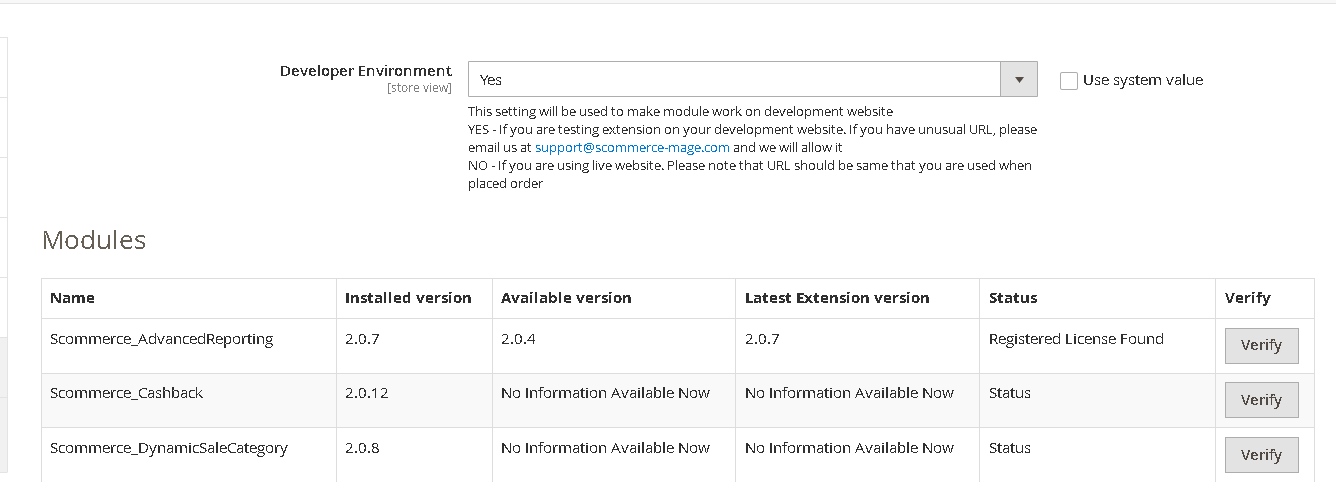
Once added go to Stores>Configuration>Scommerce Configuration>Core and click on verify. Once verified the license will start working on your staging site.
Q. Can I test the extension before buying?
A. Unfortunately we can't provide you extension for testing purposes but we have demo available for most of our extensions and happy to provide full refund if the extension doesn't work
Q. Can I request for customisation on your extensions?
A. Yes we do provide all sort of customisation for our clients at the reasonable rates. And if we believe the customisation will help our product then we also provide great discount on the customisation
Q. I have multiple websites/stores, each with a unique domain. Do I need a separate license key for each live domain?
A. Yes, each live domain requires its own license key. Our license keys are URL specific and each live domain, subdomain, subfolder requires a separate key. If you’re running multiple websites from the same Magento instance, we offer a 30% discount when purchasing license keys for two or more domains in a single order. To receive a coupon code, please contact us at support@scommerce-mage.com.
Q. How can I upgrade my extension to the latest version?
A. The upgrade process depends on your platform and how the extension was installed:
For Magento 2 (Installed via Composer)
If your extension is within the free upgrade period (12 months from the purchase date), you can update directly via the command line. Simply run the composer require command for the specific module to fetch and install the latest available version. If you are outside the free upgrade period, you will need to buy an upgrade using the link below.
For Magento 1 or Magento 2 (Installed manually via app/code)
If your extension is within the free upgrade period (12 months from the purchase date), you can simply download the latest available version by logging into our website and navigating to My Account > My Downloadable Products. If you are outside the free upgrade period, you will need to buy an upgrade using the link below.
Purchase an Upgrade:
https://www.scommerce-mage.com/magento-extension-installation-service.html
Important Note for Manual Upgrades: Before uploading the latest version, we highly recommend deleting all existing files and folders of our extension from your website. We may have deprecated or removed certain files in the update, and keeping the old ones could cause conflicts on your website.
Q.Where can I download the extension files?
A. Please login into your account on our website and go to the download link under my account section to download the extension package.
Q.Can you provide a key that works for our development (NOT PRODUCTION) environment which will work on a dynamic URL, for example, 12334.gitpod.com and 4567.gitpod.com?
A. Unfortunately it is not possible to generate license keys based on the dynamic URLs.
License keys need to be generated per domain or subdomain whether it is production or non-production.
Q. How can I manually uninstall your module?
A. Please follow the below steps -:
Step 1: Navigate to our store and login to your account. Then go to the My Account Section, on the left menu click on Composer Instructions.
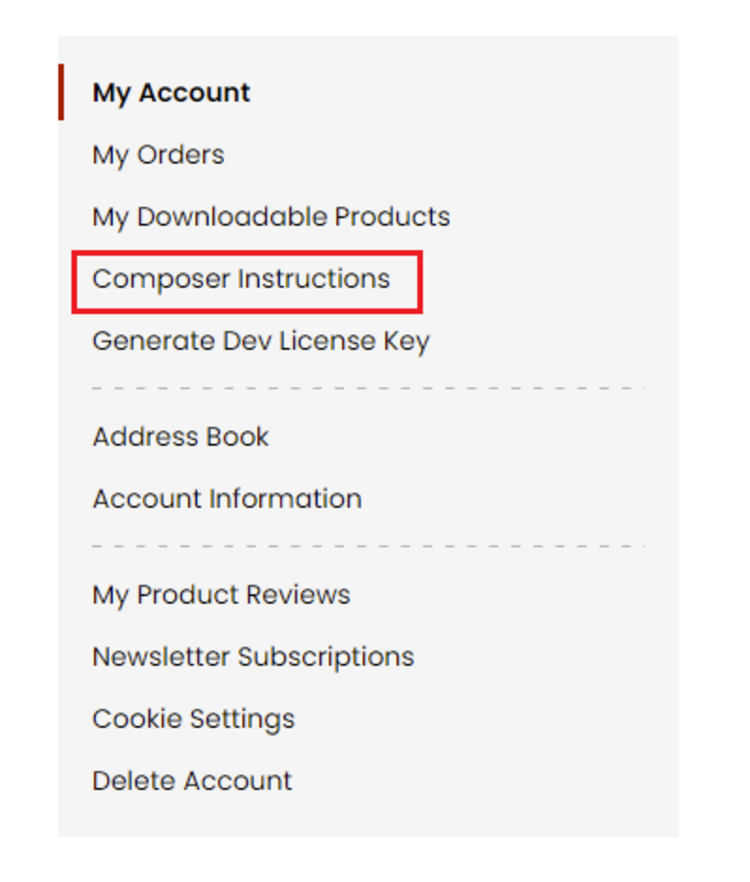 Step 2: Next, run the config commands shown on the top of the page then click on the extension that you want to install. A composer require command will be revealed in the dropdown menu. Run the command then clear caches to complete the installation.
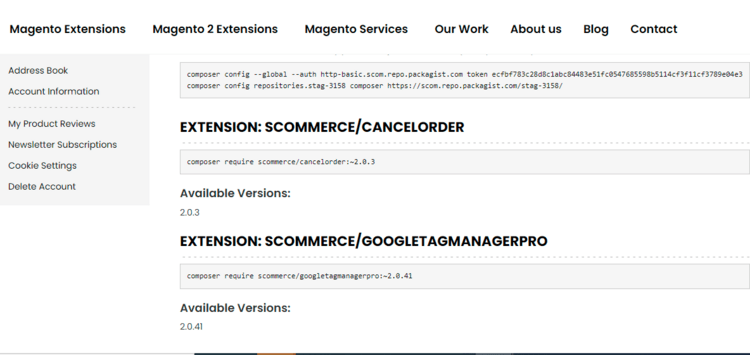
Step 2: Next, run the config commands shown on the top of the page then click on the extension that you want to install. A composer require command will be revealed in the dropdown menu. Run the command then clear caches to complete the installation.
Q. Do you support SPA (Single Page Application) / PWA (Progressive Web Application) / AMP ?
A. Unfortunately, we don’t support SPA or PWA or AMP but we may be supporting them in future depending upon the demand.
Change Log
Version 2.0.0
2025-10-14 14:19:34
Initial Release
Write A Review
Fields marked with * are required